
J-Times Editorial
J-Times 編集部 / J-Times Editorial Team
How to book a tour or meetup on Matsuri (matsuri.group) in five steps, with screenshots from 30 Sept 2026: reading a listing, choosing a date, booking without an account, paying and your QR ticket.
Read this article to earn +5 MTC
How to book an experience on Matsuri, in five steps
Short answer (as of 2026-09-30): Open a listing, tap "Check Availability", pick a date on the calendar, enter the number of people and your email, and confirm. You do not need an account, and you get a confirmation email with a QR code.
Disclosure: J-Times and Matsuri are both operated by Jon&Coo Inc. Every screenshot was taken on matsuri.group on 30 September 2026; dates and prices are as of that date.
This is part two of our Matsuri feature; the overview is in part one. As a worked example we use a free language-exchange picnic in Shinjuku Central Park on Saturday 3 October 2026. The screenshots below were taken in the Japanese view; the English view has the same layout.
Step 1: How do you find an experience?
Use the search bar on the home page (location, date, guests), or browse a category such as Tour or Meetup.
If you have no fixed plan, the category lists sorted by date are the quickest way in. Tap a card to open the listing.
Step 2: What should you check on the listing?
The date and time, the duration, the location, whether bookings are open, and what is included and what to bring.
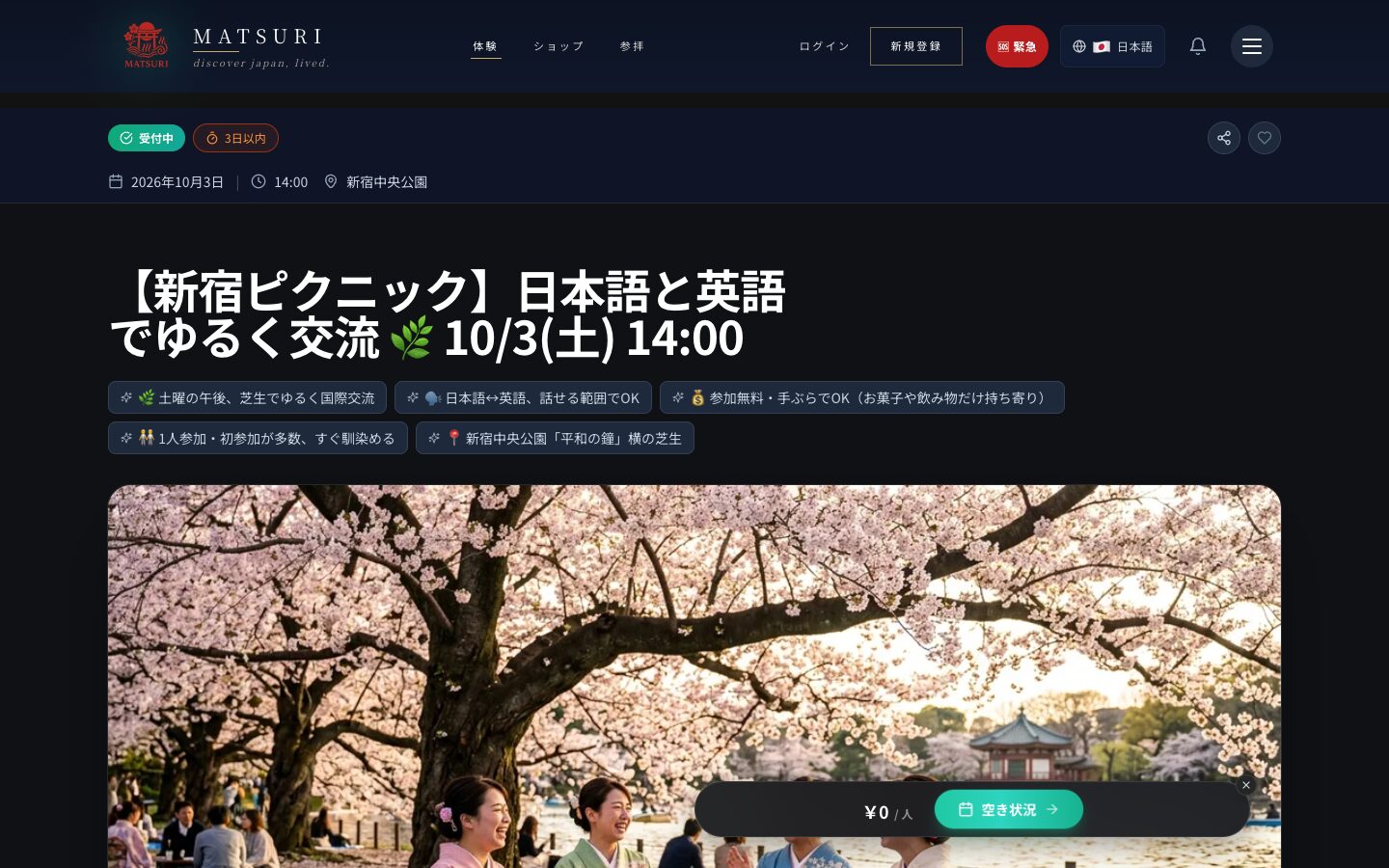
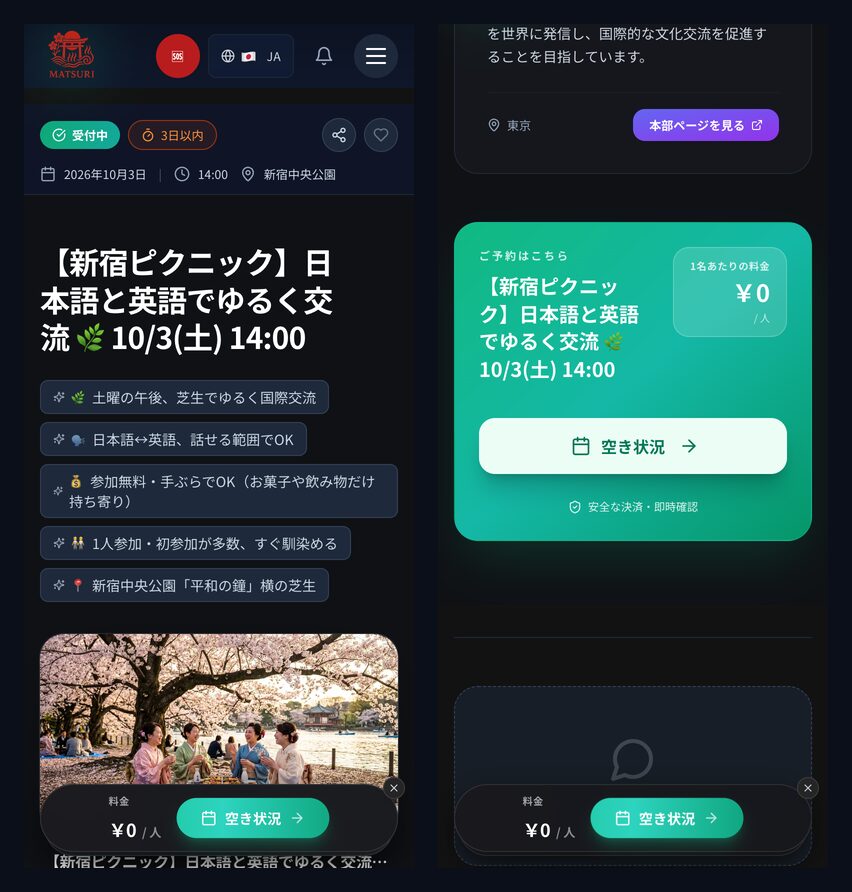
The top of the page shows whether the listing is accepting bookings, plus the date, time and place. Under the title, short highlights sum up the experience — for this picnic, "Japanese↔English, whatever level you have" and "free, just bring yourself".
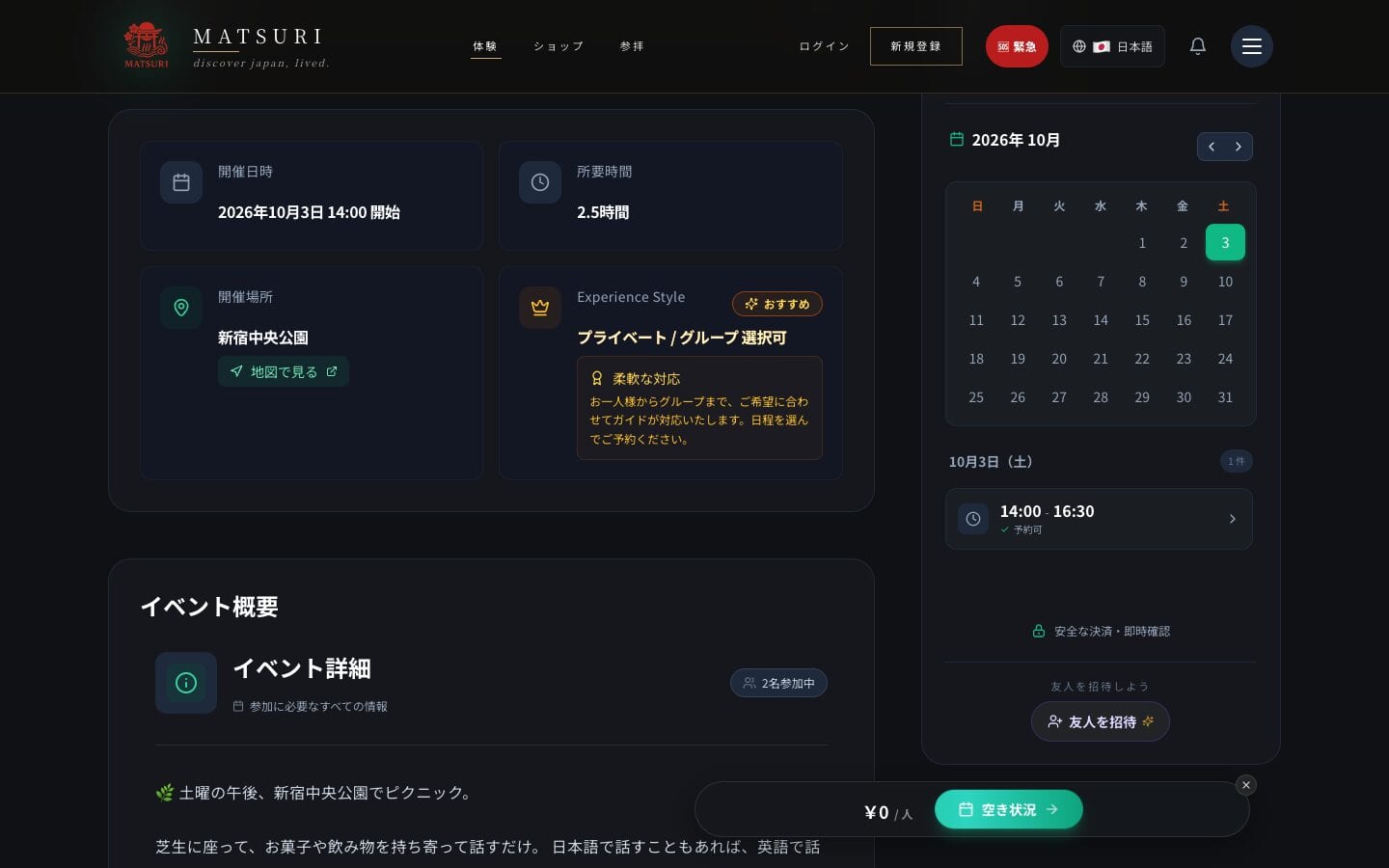
Further down are cards for date and time, duration and location, with a "View on map" link for the meeting point. Listings marked "private / group available" take bookings from one person or from a group.
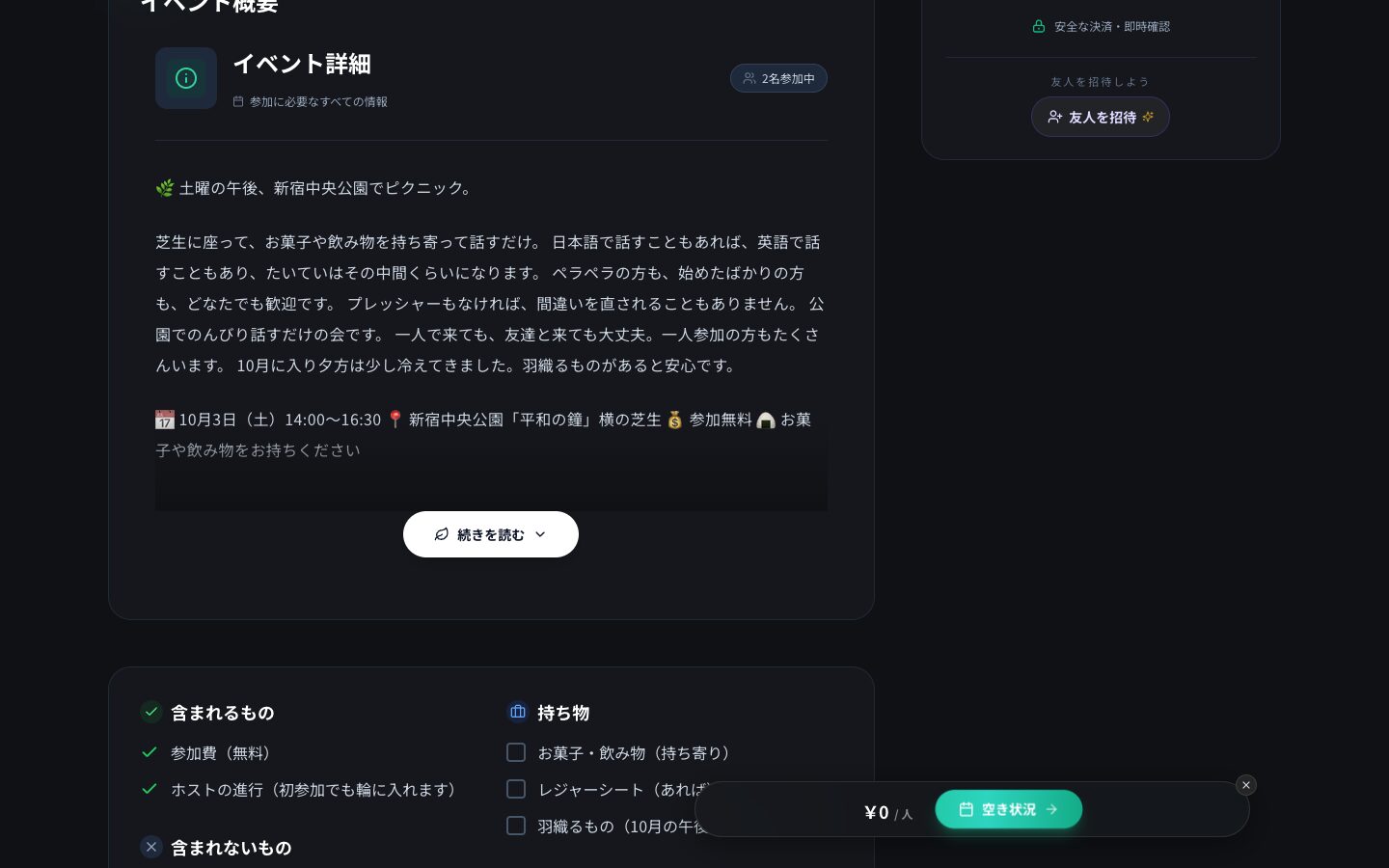
The "included", "not included" and "what to bring" lists double as a packing list. For this picnic, the free entry and a host who brings everyone into the conversation are included; you bring snacks or drinks to share, a picnic mat if you have one, and a layer for the October evening. Where a listing has a cancellation policy, it is shown on the page too. Read it before you book.
Step 3: How do you choose a date?
Tap "Check Availability" and a calendar opens. Bookable days are highlighted; tap one to see its time slots.
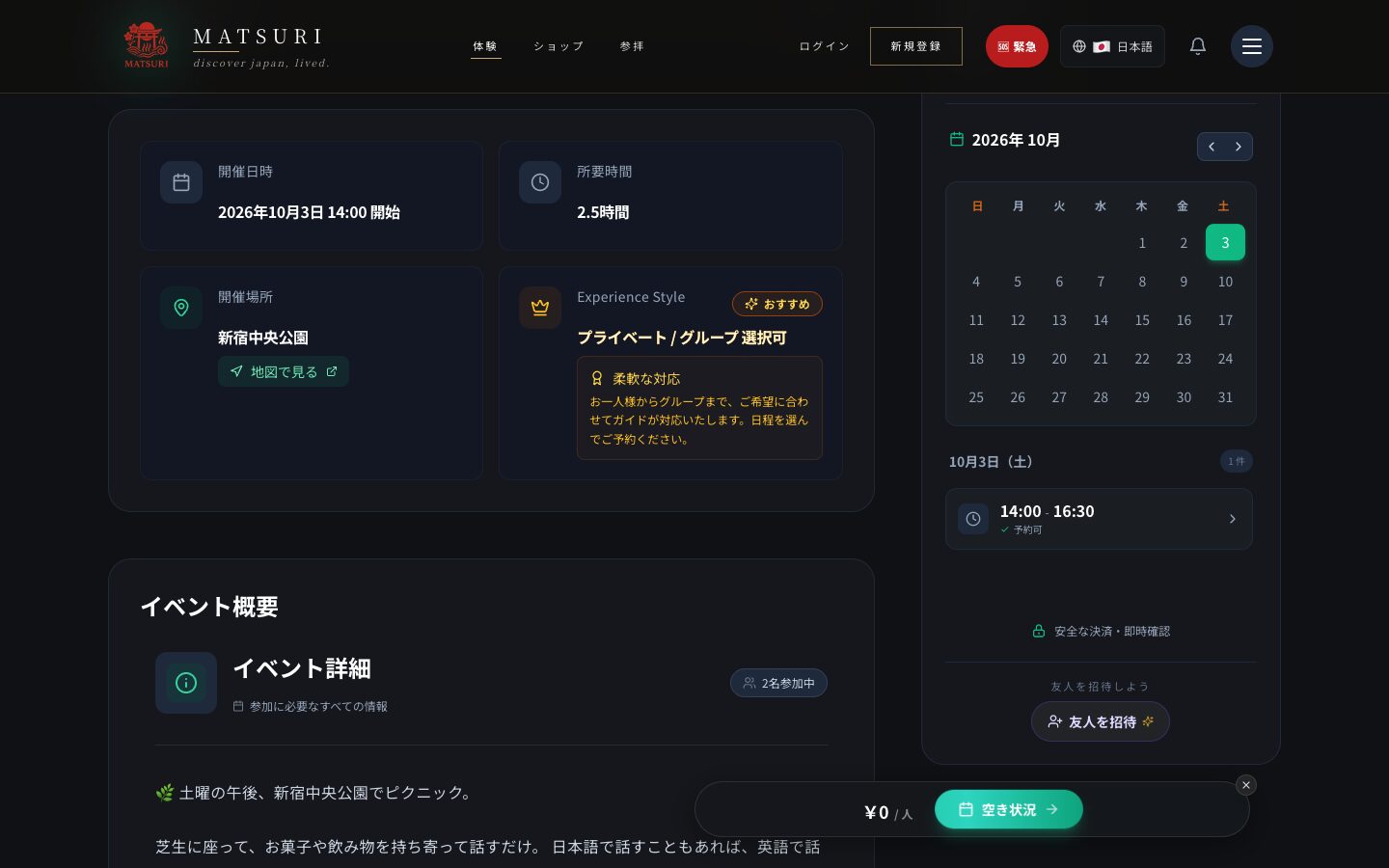
The "Check Availability" button stays at the bottom of the screen as you scroll, and there is also a booking panel on the right. Tap a highlighted day, then the time slot you want — here, 14:00–16:30.
It works the same way on a phone: the button at the bottom takes you to the booking panel.
Step 4: How do you enter people and pay?
On the booking screen, set the number of tickets with + and −, enter your email, and confirm. Paid experiences are paid for here.
- No account needed. If you are not logged in, the booking screen asks for the email address your ticket should go to.
- Payment options. Guests pay by card. Logged-in users can also use a saved card, "pay with crypto", or their MTC balance (MTC is a coin used inside Matsuri).
- Fees. Card payments carry a 5% fee and crypto payments 1%. The per-person price on the listing already includes the card fee.
- Free experiences need no payment. When the total is zero, you see a single button to confirm the booking instead of a payment form.
Step 5: What happens after you book?
You get a confirmation email with a QR code. Show the QR code at reception on the day.
The email also includes a calendar file so you can add the booking to your calendar. If you booked while logged in, you can also open the QR code from your orders on My Page.
What does "schedule being arranged" mean?
It means no bookable dates have been published for that listing yet. You cannot book it until dates appear.
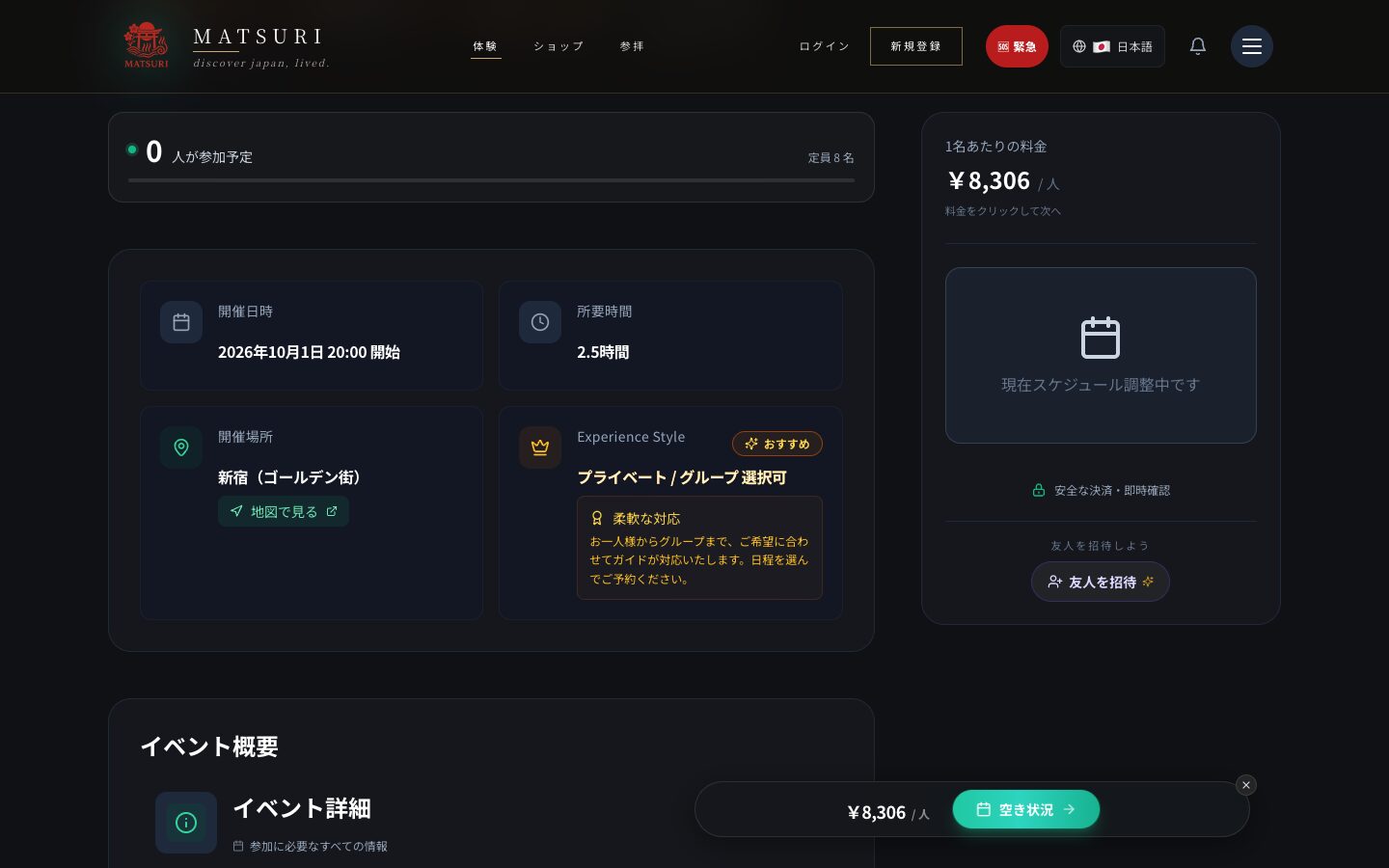
Even if a date appears on the listing card, you cannot book while the panel shows this message. Tap the heart to save the listing and check back later.
The Matsuri feature
- What is Matsuri? — the overview
- How to book an experience on Matsuri (this page)
- How to buy Japanese crafts on Matsuri Shop — reading a product page, payment and shipping
Sources and dates checked
- matsuri.group listings (Shinjuku picnic on 3 October; Shinjuku Golden Gai tour) — viewed and captured 2026-09-30
- Matsuri public API (prices, fee rates, schedules) — queried 2026-09-30
- The booking screen's fields (tickets, contact email, payment options, free booking) and the confirmation email's contents were checked against matsuri.group's booking implementation (2026-09-30)
Written by
J-Times Editorial
J-Times 編集部 / J-Times Editorial Team